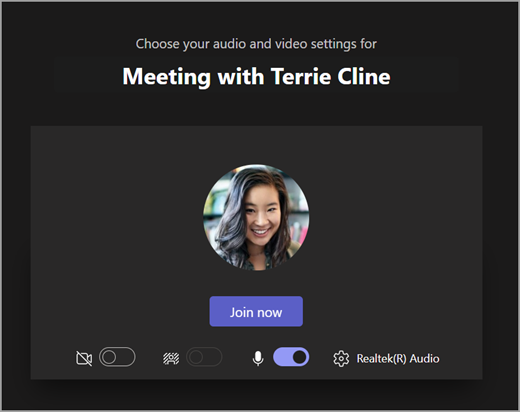
The Microsoft Teams for Education meeting toolbar helps you adjust camera, microphone, and background settings before you enter a meeting to avoid disruption. The meeting toolbar also gives easy access to important functions like sharing content, raising your hand, and more during meetings.
Use the toolbar before class
- Open the Calendar
 and find your meeting. Select Join online.
 - On the pre-join screen turn your camera
 and microphone
  on or off.
 - Turn your video on to see Background filters
 and choose what appears behind you.
 - Select Join now to enter class.
Note
To join from a mobile device, go to the Teams app and select Calendar. Find your meeting and select Join.
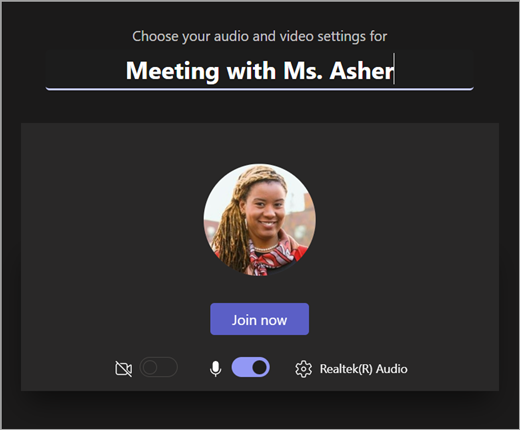
Use meeting controls
Meeting controls help you share content, adjust your background, and participate in your Teams class meeting.

Timer - Shows how long your meeting has been running.
Turn your camera on  and off
Mute  and unmute
your microphone
and unmute
your microphone
Present content  - Produces options to share PowerPoint presentations or your personal screen.
More actions 
- Gallery, large gallery, or together view - Change the arrangement of other meeting participants' video feeds.
- Show background effects - Change your background during the meeting.
- Start/stop recording - Record your meeting for future reference.
- End meeting - This will end the meeting for everyone.
Raise hand - Raise your hand in the meeting so you can comment or ask a question without interrupting.
Show conversation  - Shows the chat conversation between participants in the meeting.
Show participants  - Shows all meeting participants.
Leave meeting