Meet virtually for presentations, small group work, and one-on-ones.
Schedule a meeting
Use meetings in Teams to schedule virtual presentations and discussions for your whole class.
- Go to Teams
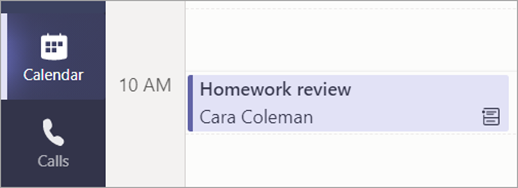
 > Calendar
 .
. - Select + New meeting.
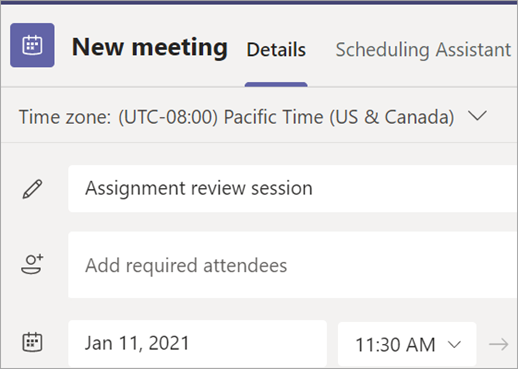
- Give your meeting a title. Decide on a date and time. Add any additional details.
Note
To make a recurring meeting, select the Does not repeat dropdown and choose whether you want the meeting to repeat daily, weekly, monthly, or yearly, or customize a cadence.
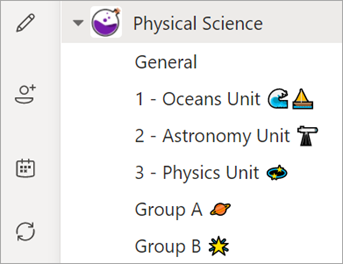
- Type in names of individual attendees, or select Add channel to select a class team channel to meet in.
Note
When you add a channel, all members of that channel are able to join the meeting. Also, all resources shared and any recordings taken during the meeting are saved in the channel.
- Take a moment to review your meeting details. Then select Send
 . This adds the meeting to your calendar and your students' calendars.

Join a meeting
- Go to Teams
> Calendar
.
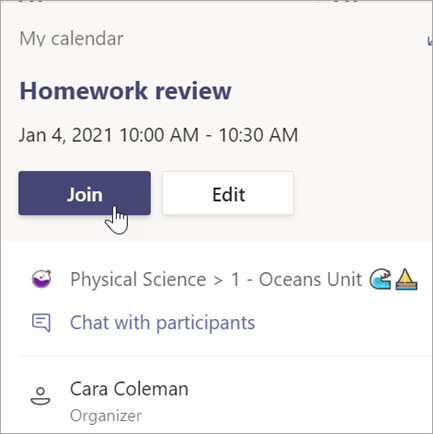
- Select your meeting > Join.
- Adjust your camera
 and microphone
  .
. - When you're ready to start class, select Join now.