How to change your user account name
Applies To
Microsoft account
The user account name on a Windows device shows the name of the signed-in Microsoft account or work/school account.
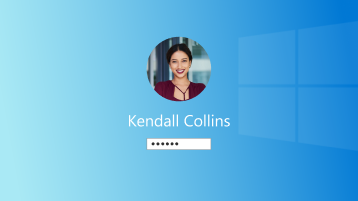
To change which user is signed in, select the Start  button on the taskbar. Then select the account name icon or picture to see a list of users you can switch to. Select another user to switch.
To edit the account name shown, select the account type:
To update your name, you'll need to sign in to Your info in your Microsoft account.
Sign in with your Microsoft account to get to the Edit name screen.
Enter the Captcha characters and select Save.
Note
- Name changes may take up to 24 hours to update everywhere.
- The display name doesn't change your gamertag. If you want a new gamertag, see How to change your Xbox gamertag.
- Using non-standard font characters (such as those from Wingdings) in a username is not supported and may prevent sign-in.
To update your name, you'll need to sign in to your work or school account.
Note
- Some organizations do not allow users to change their names. Please contact your IT admin for support.
- Name changes may take up to 24 hours to update everywhere.
- Using non-standard font characters (such as those from Wingdings) in a username is not supported and may prevent sign-in.
To update your name, you'll need to open Control Panel.

- Select Start
, type Control Panel then select
 Open.
Open.
- Select User Accounts
- Select Change your account name
See also
Add or remove accounts on your PC
Change from a local account to a Microsoft account
How to change your Microsoft account name or address
Need more help?
Can't sign in?
If you can't sign into your Microsoft account, most issues can be identified by our sign-in helper tool.
Contact Support
For technical support, go to Contact Microsoft Support, enter your problem and select Get Help. If you still need help, select Contact Support to be routed to the best support option.
Important
To protect your account and its contents, our support agents are not allowed to send password reset links, or access and change account details.

