
Use the Find/Replace feature in the Report Editor to quickly locate text within a report and replace it with updated text.
Open Find/Replace
- Open a report in Report Editor.
- Select Review > Find/Replace.
- The Find/Replace dialog box opens.
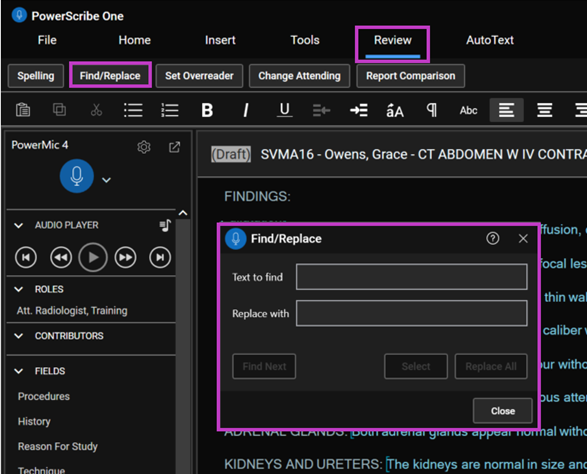
Find text
- In Text to find, enter the word or phrase you want to locate.
- Select Find Next to locate the next occurrence in the report.
- Continue selecting Find Next to navigate through additional occurrences.
Replace text
- In Text to find, enter the text you want to replace.
- In Replace with, enter the replacement text.
- Select Find Next to locate the text.
- Select Replace to update the selected occurrence.
Replace all occurrences
- Enter the text to find and the replacement text.
- Select Replace All to update every matching occurrence in the current report.
Note
Review the report after using Replace All to ensure all replacements are accurate and appropriate in the report context.