When you receive an email message or a task request, you can create a meeting request as a response with one click.
Note
The Reply with Meeting feature is only available with Business Exchange accounts.
Create a meeting request from email messages in new Outlook
When you create a meeting request from an email message, everyone who is on the To line in the original message is invited as Required Attendees, and everyone on the Cc line as Optional Attendees.
Do one of the following:
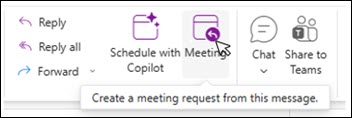
- In the message list, select the message, and then on the Home tab, in the Respond group, select Meeting.
- In an open message, on the Message tab, in the Respond group, select Meeting.
Enter the location and start and end times as you do in any meeting request. You can also add or remove attendees, use Scheduling Assistant to find the best meeting time, or add attachments. The header and body of the original message are included in the body of the meeting request.
Conversations and Reply with Meeting
If your message list is arranged by conversation, the meeting request created with the Meeting option is associated with the same conversation as the original message.
The meeting request appears in the expanded conversation.
When you select Meeting in a conversation that is not expanded and contains multiple branches, the meeting request applies to the most recent message in the selected branch.
Doug shows you how in the following video, or you can skip directly to the instructions.
The meeting request invites everyone who is on the To line in the original message as Required Attendees, and everyone on the Cc line as Optional Attendees.
Create a meeting request from email messages in classic Outlook
Do one of the following:
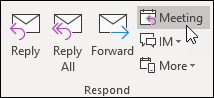
- In the message list, select the message, and then on the Home tab, in the Respond group, select Meeting.
- In an open message, on the Message tab, in the Respond group, select Reply with Meeting.
Enter the location and start and end times as you do in any meeting request. You can also add or remove attendees, use Scheduling Assistant to find the best meeting time, or add attachments. The header and body of the original message are included in the body of the meeting request.
Note
The "Reply with Meeting" feature won't work for emails that are encrypted with a sensitivity label or Information Rights Management (IRM). In classic Outlook, if you try to apply the "Reply with Meeting" feature to an encrypted email, you will get an error "You cannot perform this action. Permission to this message is restricted."
Conversations and Reply with Meeting
If your message list is arranged by conversation, the meeting request created with Meeting is associated with the same conversation as the original message. The meeting request appears in the expanded conversation.
When you select Meeting on a conversation that is not expanded and contains multiple branches, the meeting request applies to the most recent message in the selected branch.
The Meeting command is not available when you select a conversation header.
Note
In classic Outlook client "Reply with meeting' feature is available for normal messages.
For protected messages please use "Meeting " button under 'Respond' group in 'Home' tab in New Outlook or Outlook on Web (OWA) client.

